Sources
A source is one thing the app captures: a screen, a camera, a file, an image or
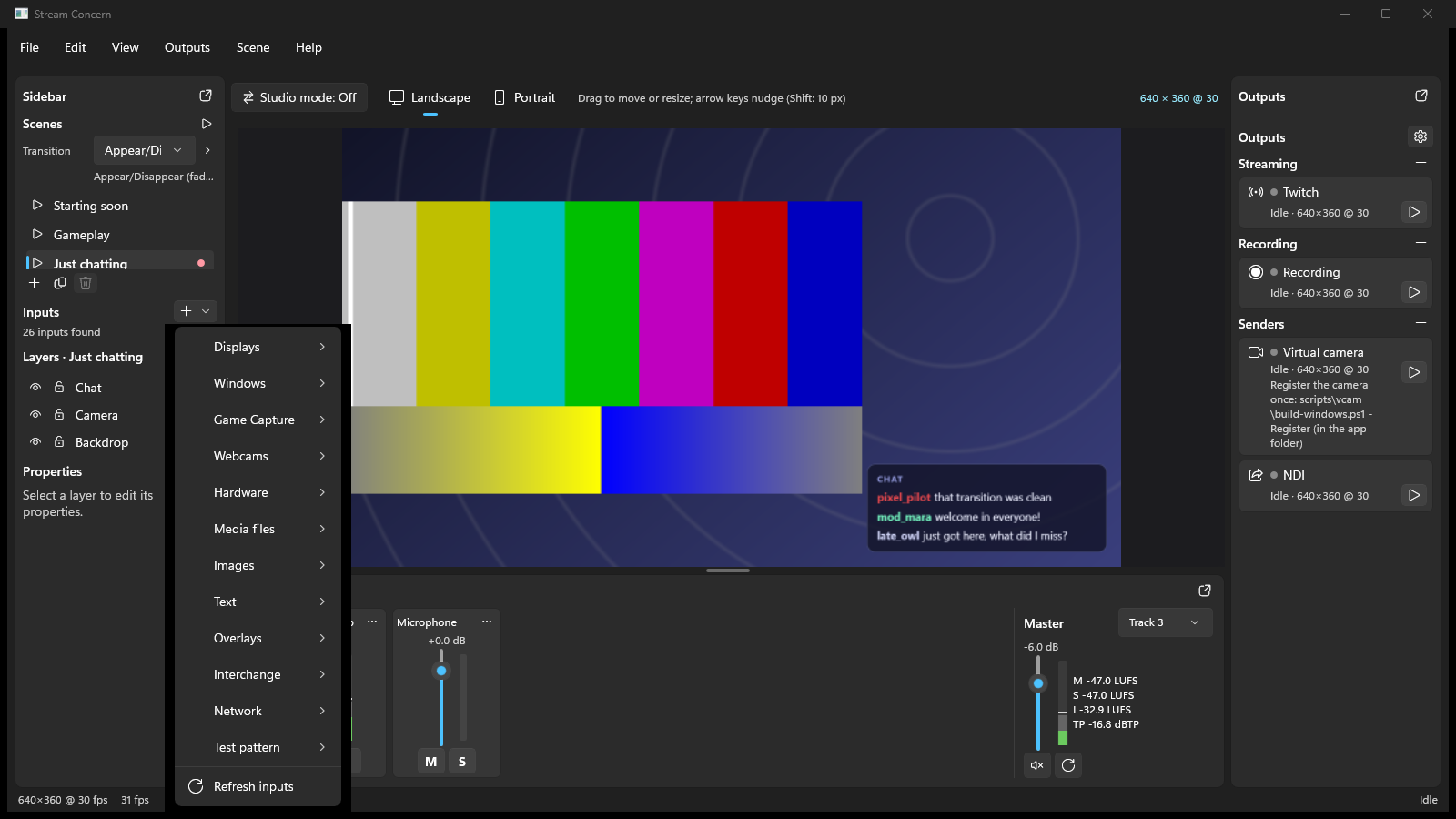
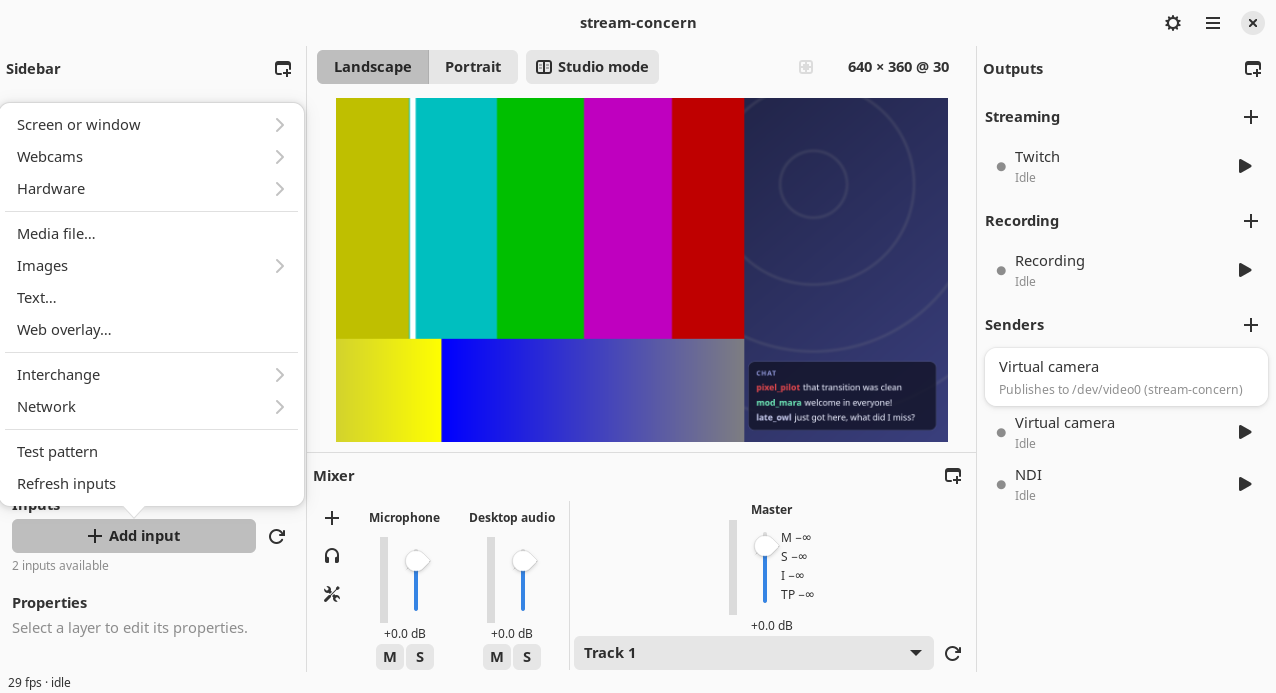
the test pattern. You add sources to the current scene from the Add source
pull-down at the top of the Scenes panel (the ➕ Add source button). Each
source you add becomes a layer in the scene; see
Scenes and the canvas editor for placing and sizing layers.
The Add source groups
The pull-down is grouped. The groups and their entries are:
| Group | Entries |
|---|---|
| Displays | one entry per display; “No displays” when none are found |
| Windows | one entry per on-screen window (by app and title); “No on-screen windows” when none |
| Game Capture (Windows, macOS) | the Show cursor, HDR (experimental) (Windows only) and Match game frame rate options, then one entry per top-level window (by title and process or application, e.g. Elden Ring — eldenring.exe); see Game Capture |
| Webcams | one entry per camera; “No webcams” when none |
| Hardware | capture cards and other UVC devices; “No capture cards” when none |
| Media files | 🎞 Open file… (native file picker) |
| Images | 🖼 Open image… (native file picker), plus recent images |
| Text | 🇹 Add text… (a styled text overlay) |
| Interchange | one entry per discovered Spout / Syphon / NDI / PipeWire source, plus ⟳ Refresh; “No interchange sources found” (or the NDI runtime-missing message) when none |
| Network | one RTMP Server: <label> entry per generated RTMP Server key (“No RTMP Server keys yet” when none), then ⚙ RTMP Server settings… (opens Settings ▸ RTMP Server) |
| Test pattern | the always-available synthetic pattern |
A ⟳ Refresh sources button (hover: “Re-enumerate displays, windows and devices”) refreshes the lists in the background. A spinner shows when discovery is running. Device and window enumeration happens on demand, never every frame. If macOS or Windows cannot list screens, the error stays beside Refresh while cameras remain available. A failed refresh keeps the previous screen list; it does not prove those sources have disappeared.
At startup, screen discovery checks the existing macOS permission before querying ScreenCaptureKit. Use Refresh sources to request access explicitly. Saved screen layers retain their settings if discovery fails; after permission is restored, refresh again, then restart the app to restore saved screen layers.
Windows
Linux
What each OS supports today
Capture backends differ by platform. This build is validated on macOS; the Windows and Linux screen backends compile and are unit-tested but not yet runtime-verified. Cameras and capture cards work on macOS (AVFoundation) and Windows (Media Foundation, see Webcams and capture cards on Windows); Linux has none yet.
| Source | macOS | Windows | Linux |
|---|---|---|---|
| Display | ScreenCaptureKit | Windows Graphics Capture (WGC) | XDG desktop portal + PipeWire |
| Window | ScreenCaptureKit | WGC | portal (system picker) |
| Game Capture | ScreenCaptureKit window, zero-copy IOSurface + application audio (no HDR) | WGC, zero-copy shared texture + process audio | — |
| Region | ScreenCaptureKit sourceRect |
crop of the display texture | crop (BGRA) |
| Webcam / virtual camera | AVFoundation | Media Foundation | not yet |
| Capture card | AVFoundation | Media Foundation | not yet |
| Media file | yes (VideoToolbox/CPU decode) | yes | yes |
| Image overlay | yes | yes | yes |
| Text overlay | yes | yes | yes |
| RTMP Server (RTMP/RTMPS) | yes | yes | yes |
| Interchange (Syphon) | Syphon | — | — |
| Interchange (NDI) | when the runtime is installed | when the runtime is installed | when the runtime is installed |
| Test pattern | yes | yes | yes |
Media files, images, text overlays and the test pattern are backend-neutral and
work on every platform. The RTMP Server (RTMP/RTMPS) is a network source and is also
platform-neutral (the listener runs on any OS, though a manual publish from OBS
has so far been exercised end to end only through the app’s own loopback publisher; a manual publish from OBS on a second machine is still to be done). On Linux the
portal’s own system picker chooses the concrete monitor or window at capture
time, and a working xdg-desktop-portal (GNOME/KDE on Wayland or X11) is
required — there is no legacy X11 fallback.
Interchange sources let another application on the same machine hand its video to stream-concern: Syphon on macOS, Spout on Windows (any Spout 2 sender: OBS with the Spout2 plugin, Resolume, TouchDesigner, the Spout demo sender; BGRA and RGBA textures), and NDI on any platform once the NDI runtime is installed. A Spout source lists the sender’s size and application, follows it when it changes size, holds its last frame and reports “Spout sender closed” when the sender quits, and resumes when a sender with that name returns. Sending the program canvas out over Syphon, Spout or NDI is a sender in Outputs; publishing a single chosen source is not in this build (see Not yet).
Displays and regions
A display captures a whole monitor. Its capture properties (open the Capture properties section for the selected layer) are:
- Capture a sub-region (🔲) — turn on to capture a rectangle of the display instead of the whole screen, set by x / y / w / h in display pixels.
- FPS — target capture frame rate (1–240).
- Show cursor — whether the mouse pointer is drawn into captured frames.
On macOS, display, window, region and cursor toggle are all supported. If capture fails with a permission error, grant Screen Recording and fully quit/reopen the app when macOS requests it (see Getting started). If the app is enabled in System Settings but still asks repeatedly, see the targeted repair and signing guidance in Release packaging.
Windows
A window source captures a single application window (chosen by app and title from the Windows group). It uses the same Capture options (FPS, show cursor) as a display.
A window layer remembers which application owns its window (macOS: the application’s bundle identifier; Windows: its executable) and the window’s title. When the window closes, or the application (or stream-concern) restarts and the window comes back under a new id (macOS gives every launch new window ids), the layer comes back by itself on Windows and macOS: while it waits, the app looks for that application’s window (every couple of seconds for the first minute, then every ten seconds, for as long as the application is not running) and puts it in the same spot, with the same crop, effects and visibility, in every scene that shows the layer. It takes the window with the same title, else the application’s main window, else its only window; when the application runs twice and no title matches, it does not guess and the layer shows “(missing)” until you relink it. A layer saved by an older version, or imported from another machine, does not know its application and waits for you to relink it.
On Windows, display and window captures hand their frames to the compositor
as shared GPU textures (no CPU copy, no upload) whenever the capture and the
compositor run on the same GPU; the Input block’s Delivery row reads
gpu-surface (zero-copy). On a hybrid-GPU laptop where they differ, the
capture falls back to the CPU copy (cpu-copy) and the log says why once.
Capturing stream-concern itself. This app’s own windows are listed last, with “ (this app)” after the title (macOS and Windows; never in Game Capture). A layer on one shows the program inside itself, and its Info block reads “Shows this app”. The layer’s Nested preview option chooses what the capture shows where the window shows the program (the preview canvas, the Studio Preview and Program panes):
- Mirror (default): the window as captured, so the program repeats inside itself, level after level.
- Blank: a neutral grey tile.
- Logo: the grey tile with the app mark in the middle.
- Frozen: a still of the first frame captured after you chose it.
- Program (direct): stream-concern draws its own previous Program frame there, scaled to the picture inside each pane, so the nested view is live without being read back from the screen. It is one frame behind the program.
The option is saved with the layer. Today the row appears in the macOS app only; the other apps follow.
Game Capture (Windows and macOS)
Add source ▸ Game Capture captures one game window. On Windows it uses Windows Graphics Capture and imports each frame into the compositor as a shared GPU texture: the frame is copied GPU to GPU into a small ring of shared textures and never touches the CPU, so the capture keeps up with the game’s frame rate and costs no upload. It works for windowed and borderless-fullscreen games; true exclusive-fullscreen games cannot be captured this way (set the game to borderless). No code is injected into the game, so anti-cheat software has nothing to object to.
Before picking the window, set the options at the top of the submenu (they apply to the next pick and can be changed later in the layer’s Capture options):
- Show cursor — draw the mouse cursor into the capture (on by default; turn it off for a game that draws its own).
- HDR (experimental) — capture in 16-bit float (scRGB) instead of 8-bit. The canvas is SDR, so the capture is scaled by the display’s SDR content brightness (read from Windows when the capture starts, 80 nits if it cannot be read) so SDR parts of the game keep their brightness, highlights brighter than SDR white are rolled off with a soft shoulder instead of clipping, and the result is encoded to the canvas. It is not an HDR output. Needs the zero-copy path; if the capture falls back to the CPU copy the layer reports an error and you should turn HDR off.
- Match game frame rate (on by default) — deliver every frame the game presents, up to the display’s refresh rate, instead of limiting to the layer’s FPS.
The same game in several scenes. A second Game Capture of a window that another layer already captures with the same options (in another scene, or the same one) shares that layer’s capture: the window is captured once and every layer showing it gets the same frames, in Studio Mode on Preview and Program at once. Changing one layer’s capture options gives that layer a capture of its own. (The same holds for plain window captures.)
Game audio. Adding a Game Capture also adds a mixer strip named
Game audio: <game> that captures only the game’s process tree (Windows 10
2004 or later). It is bound to the layer: removing the layer removes the strip
too, unless you tick Keep the audio when this layer is removed in the
layer’s Game Capture options, or the strip already existed (an
Application audio strip for the same program is reused and never removed).
If the game’s process cannot be read (an elevated game), no strip is added;
add it from the mixer’s Application audio menu.
The Input block shows Kind: game capture (window), the game’s Process,
the capture rate in Capturing now, the Delivery (gpu-surface (zero-copy) or cpu-copy), the HDR and frame-rate choice, and the bound game
audio. A Game Capture layer is saved, restored, duplicated and relinked like a
window layer. When the game quits, crashes, restarts or replaces its window,
or stream-concern restarts after the game did, the layer comes back by
itself: while it waits, the app looks for the same game’s window (every
couple of seconds for the first minute, then every ten seconds) and puts it in
the same spot, in every scene that shows the layer, once it is ready (past
its splash screen).
On macOS Game Capture is a ScreenCaptureKit window capture, the same
capture as Windows, labelled and set up for games. There is no way (and
no need) to hook a game on macOS, so every Mac game that shows a window can
be captured, fullscreen games included (a fullscreen Mac app is still a
window). Each frame arrives as an IOSurface the compositor samples directly
(Delivery: gpu-surface (zero-copy)). The submenu offers Show cursor
and Match game frame rate (on by default: every frame the game draws,
up to the display’s refresh, ProMotion’s 120 Hz included, instead of the
layer’s FPS; ScreenCaptureKit sends a frame only when the window changed).
HDR is not offered on macOS yet: the capture is 8-bit SDR. The game’s
audio is captured by application through ScreenCaptureKit (the window’s
owning app, by its bundle identifier), in a strip named Game audio: <app>
with the same keep and removal rules as on Windows; if the application
cannot be identified no strip is added (add it from the mixer’s
Application audio menu). Game Capture needs the same Screen & System
Audio Recording permission as window capture.
Webcams and virtual webcams (macOS)
The Webcams group lists physical cameras (built-in FaceTime HD, USB UVC webcams), virtual cameras registered by other software (OBS Virtual Camera and NDI Virtual Camera appear here as CoreMediaIO camera extensions), and an iPhone Continuity Camera when connected. Selecting one and opening Capture properties shows a Camera section:
- Resolution — a dropdown of the sizes the device advertises.
- Frame rate — a dropdown of the rates the chosen resolution offers.
- Mirror — horizontally flip the camera image.
The app negotiates NV12 or YUY2, falling back to MJPEG (decoded to BGRA) where that is all the device offers. If the device is busy or has no signal the panel shows “No formats advertised (device busy or no signal).”
Cameras require the Camera permission; if it is denied the panel tells you to grant it in System Settings ▸ Privacy & Security ▸ Camera and reopen the app.
Capture cards (macOS)
Capture cards (HDMI/SDI ingest presented as a device) appear in the Hardware group and use the same Camera section (resolution, frame rate, mirror) as webcams — they are captured through AVFoundation as external devices. The negotiated format prefers NV12/YUY2, then MJPEG. Note that on macOS some card modes (for example a card’s 4K60 mode) and HDR capture are not available; the app enumerates and offers whatever formats the device actually advertises.
Webcams and capture cards (Windows)
On Windows the Webcams and Hardware groups list every video capture device Media Foundation sees: USB (UVC) webcams, capture cards (USB and PCIe), and software cameras other programs register (the NDI Webcam Input’s “NDI Webcam Video” devices, Sony’s “Imaging Edge” camera and the like, marked virtual). stream-concern’s own stream-concern Virtual Camera is an output and is never listed as a source. Capture cards are recognised by name (Elgato, AVerMedia Live Gamer, Magewell, “HDMI”, “capture”, …) or by being PCIe devices.
The Camera section is the same as on macOS (Resolution, Frame rate, Mirror). The app asks the device for its own formats in this order: NV12, then YUY2 / UYVY, then RGB32, and only when the chosen size and rate exist solely as MJPEG does it use MJPEG, decoded by Windows’ MJPEG decoder into NV12. The frame rate is set to the device’s own advertised rate (59.94 stays 60000/1001). 10-bit P010 (HDR) modes are listed in the Input block but not captured until the canvas has an HDR mode. A device that delivers frames faster than its format says (some software cameras answer every request at once) is paced to its stated rate. Mirror is applied while copying the frame.
The resolution and frame-rate lists come from the last source discovery (the app never opens a camera to list its formats while you work); if a camera was busy when it was discovered its lists are empty until ⟳ Refresh sources.
A camera keeps its place in your scenes when it moves to another USB port: Windows gives it a new device path, and the app finds it again by its USB vendor and product ids and its name (the same identity macOS uses, so a scene made on a Mac finds the same camera on Windows). When two identical cameras are connected the app does not guess; the layer shows “(missing)” until you pick one.
Camera audio. A webcam’s microphone or a capture card’s audio is a separate Windows audio device. The Input block names the one in the same USB device (it reads the device container Windows groups them in, so “OBSBOT Tiny 3 StreamCamera” pairs with “OBSBOT Tiny 3 Microphone” whatever the endpoint is called) and reports it as the camera’s audio track; add it in the mixer to hear it.
When the camera will not open.
- Another app is using it — while another program streams the camera, Windows refuses a second program that asks for a different format. The app first retries in the camera’s current format; when that works it captures it and says so (“Another application is controlling <camera>’s format; capturing at its current 1920×1080 @ 60 fps.”). Otherwise the layer shows “Another application is using <camera> exclusively. Quit it and try again.” Windows only records which programs use a camera, not which camera, so the app adds “(possibly <app>)” only when exactly one running program is recorded as using one right now.
- Camera privacy is off — the layer shows “Windows camera access is off for desktop apps: turn on Settings › Privacy & security › Camera › “Camera access” and “Let desktop apps access your camera”, then try again.”
- Unplugged while running — the layer stops with “capture device disconnected”; after you plug it back in and press ⟳ Refresh sources, the layer picks the camera up again (also on its new port).
Changing the format. A Windows camera runs in one format at a time, so changing its Resolution or Frame rate closes the camera and opens it again in the new format (the picture holds its last frame meanwhile). If the new format will not start, the old one is restored; if the camera cannot be opened again at all (unplugged at that moment, or taken by another program), the layer stops with “Source stopped: <camera> could not be reopened (…)”, shows nothing, and starts again at the next scene change or format change once the camera is available.
In Studio Mode, a camera that Program is showing cannot be changed in Preview: Preview would need a second copy of the camera in another format, and Windows gives a camera to one format at a time. The change is refused with “<camera> can run in one format at a time, so it cannot be changed in Preview while Program shows it: change it outside Studio Mode, or Publish first”. A camera used only by the Preview scene changes as usual.
New or unplugged cameras appear when you press ⟳ Refresh sources (and at startup); the list does not follow plug and unplug by itself.
Media files (MP4, MOV/ProRes, MKV)
Choose Media files ▸ 🎞 Open file… and pick a local file. A media file is its own layer with its own audio, and several can play at once. When a media layer is selected, a Media section appears with:
- ▶ Play / ⏸ Pause and a timecode readout.
- Seek — a position slider (the seek is applied when you release it).
- Loop — restart from the beginning at end of file.
- Hold last frame — keep showing the final frame at end of file instead of tearing down.
- Use file audio — route the file’s own audio into the mix (this toggles the media layer’s mixer input mute).
- a Dropped frame count, and a “Finished” indicator at end of file.
Playback decodes on a worker thread; the file’s audio is placed onto the mixer bus by timestamp so it stays in sync (see Audio and Recording). H.264 MP4, ProRes MOV and MKV are all supported; a corrupt file yields a clear error rather than a crash.
Images (PNG, JPEG, GIF, SVG)
Choose Images ▸ 🖼 Open image… (recent images are listed for re-use). An image is an overlay layer. Supported formats: PNG, JPEG stills, animated GIF and SVG. When an image layer is selected an Image section shows the file Path, the Intrinsic size, whether it is Animated (with a frame count) or a Still image, a ⟳ Reload button (re-read the file from disk), and the last decode error if any.
- A still image is drawn once and re-sent only when its file changes.
- An animated GIF advances frames on the media clock and loops.
- An SVG is rasterised at its on-canvas size and re-rasterised when you resize the layer, so it stays crisp.
- The file’s modification time is polled once a second; a change reloads the image automatically.
Text overlays
Choose Text ▸ 🇹 Add text… to add a styled text layer. It starts with the placeholder string “Text” in white Poppins Bold at 96 px (about a tenth of a 1080p canvas per line) over a soft drop shadow; Poppins ships with the app (SIL Open Font License), so the default looks the same on every platform, and it is listed with your system fonts in the font picker. When a text layer is selected a Text section shows an editor:
- the multi-line text field (hint: “Overlay text”).
- Font — the current family (or “Default sans”), with a Choose font… button.
- Size, and Bold / Italic toggles.
- Fill — a colour swatch and a Choose colour… button.
- Outline (toggle) — width and colour.
- Shadow (toggle) — dx, dy, blur and colour.
- Background box (toggle) — padding, corner radius and colour.
- Align — Left, Center or Right.
- Wrap width (toggle) — wrap the text at a pixel width.
Text is shaped over your system fonts on a worker thread and re-rendered only when the text or style changes. Typing is debounced (about 100 ms) so the layer is not re-shaped on every keystroke. A font family that cannot be found falls back to the default sans font rather than failing.
Font and colour pickers per OS
Choose font… and Choose colour… open the platform’s own dialogs where they are available:
- macOS — the native NSFontPanel and NSColorPanel; your choice is delivered back to the app as you pick.
- Windows, Linux, and macOS when a native panel cannot be opened — an inline egui chooser is drawn instead (a font-family list with size and bold/italic, and a colour picker).
News crawl
Choose Text ▸ 📰 News crawl and a look (Breaking news, Business ticker, Headline bar, or one of your own presets) to add a crawl: a band along the bottom of the canvas with one or more strips of text scrolling across it, and slots pinned over them (a BREAKING badge, a headline, a clock).
- A strip’s items are typed in the inspector, one per line, or read from a
text file (one item per line; blank lines and lines starting with
#are skipped). The file is read again whenever it changes, so a producer can edit it while you are live. A relative path is in your profile folder. - The inspector’s Crawl section sets the band (size, background colour or image), each strip’s items, position, speed, direction and loop, and the slots. Apply a preset restyles the crawl and keeps where each strip’s items come from.
Design your own crawl
Click Design… in the Crawl section (or New preset… at the end of the News crawl menu) to open the Crawl designer in its own window. The strip at the top is a live preview of what you are designing; nothing reaches the canvas until you click Apply to this layer.
- Elements. Each strip repeats a row of elements from left to right:
Item (the next item from the strip’s text or file), Separator (a
glyph such as
•or|, or a dot, bar or diamond), Label (fixed text such as BREAKING or LIVE), Clock, Logo (an image file, drawn at the strip’s height or the size you give it) and Spacer (empty space). Add them from Add, reorder them by dragging or with the ↑ and ↓ buttons, and remove them with Remove. A row with two Item elements shows two items per repeat (for example “headline / detail”); a row with no Item at all (a label and a clock) shows once per pass. - Element style. Select an element to set its own font, size, bold, colour, case (as typed, UPPER, lower), padding and a background box as tall as the strip (a red box behind a label makes a tag). A setting left on Strip’s follows the strip.
- Strip style. The strip’s height, background, speed, direction, loop, the gap after each repeat, the edge fade (the text fades in and out at both ends of the strip) and the strip’s base font, size, weight and colour.
- Presets. Save as preset… keeps the look under a name in your
profile folder (
crawl-presets.toml); Save updates a preset of yours you started from, and Rename… and Delete manage it. The built-in looks cannot be changed: pick one and Save as preset… to start your own from it. Your presets appear in the News crawl menu beside the built-ins. A crawl keeps its own copy of its look, so renaming or deleting a preset never changes a crawl already in a scene. - Crawls from earlier versions open unchanged: their separator and gap become a Separator element.
A scene archive (.scz) carries a crawl’s look and typed text, but not its
files: file-backed strips arrive empty, and logos and the background image
are dropped, so an archive never reads a file on the importing machine.
Network and RTMP Server
stream-concern can run its own RTMP Server (RTMP/RTMPS) so another encoder — a second machine running OBS, a phone app, a hardware encoder, or another copy of this app — can publish a stream into it and appear as a scene source. The listener is off by default.
Enable the listener and generate a key
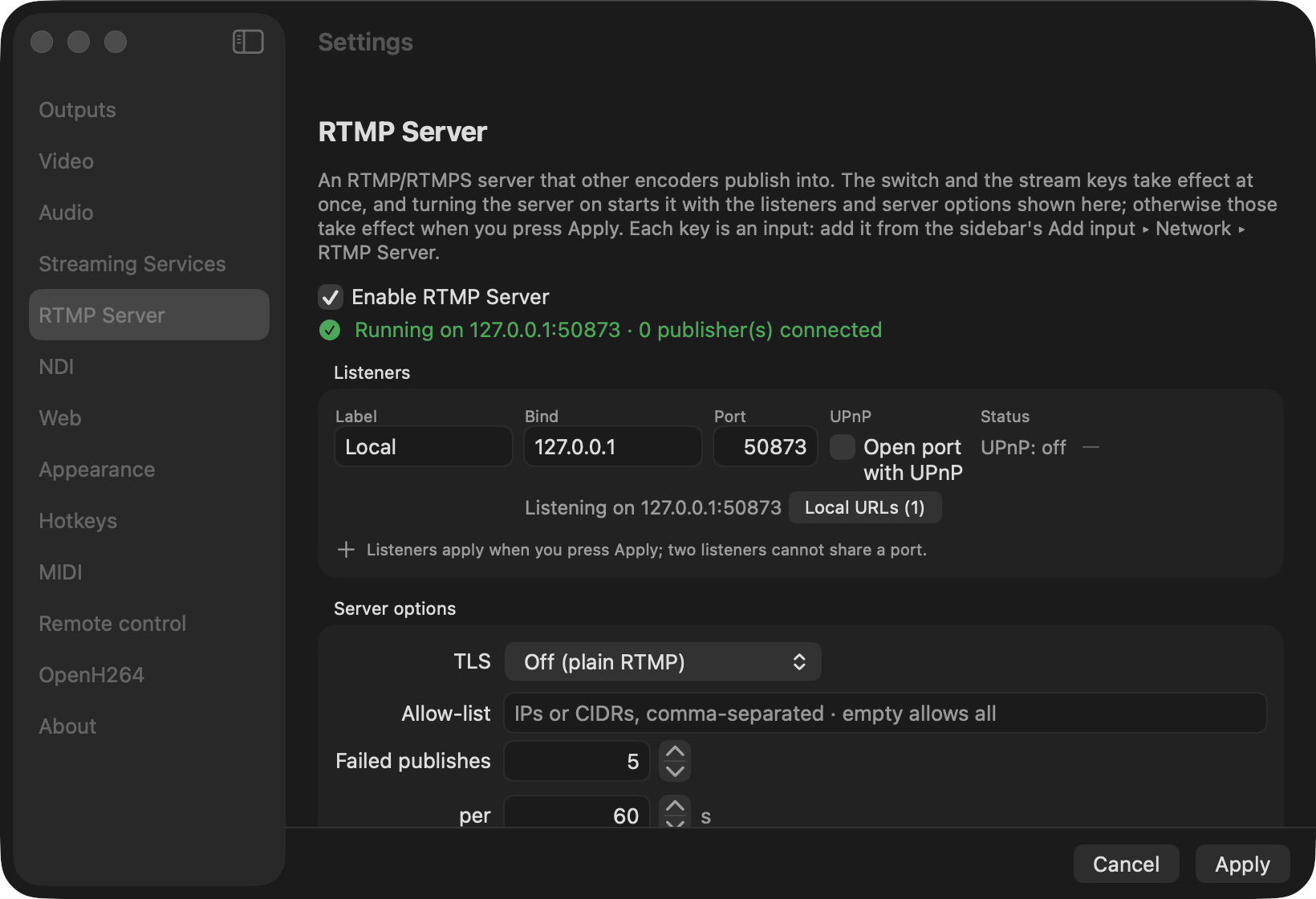
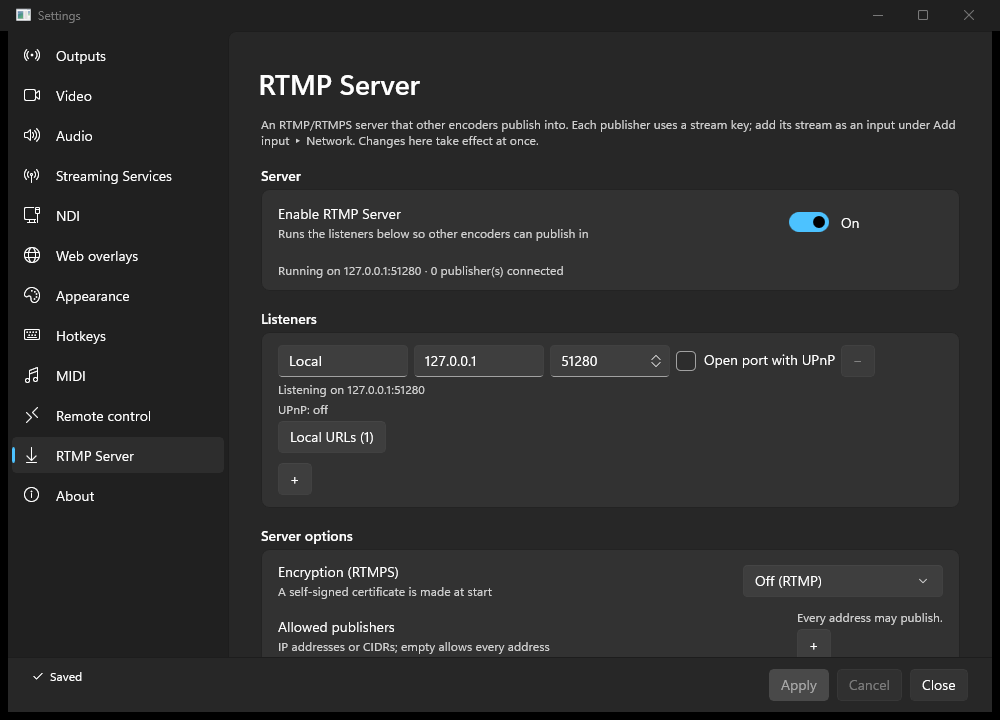
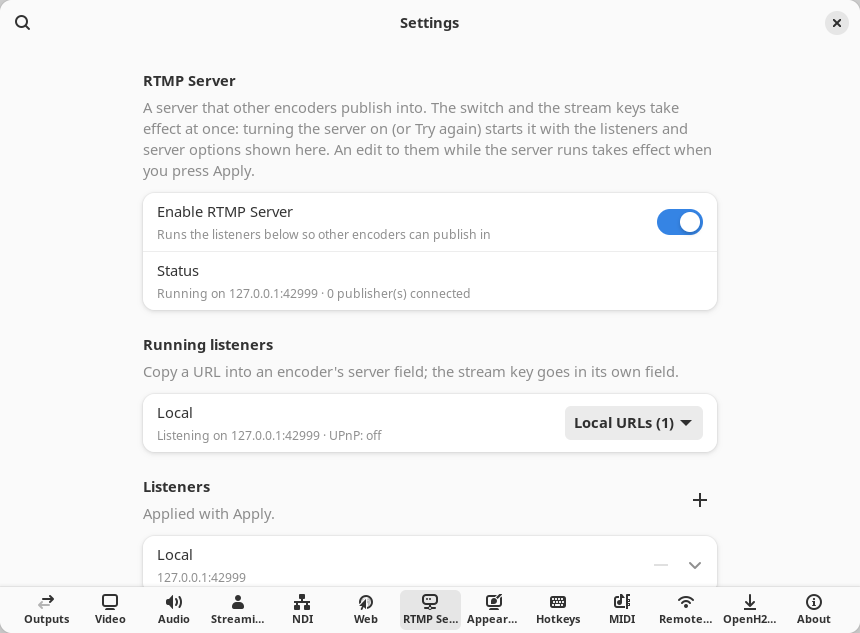
Everything about the RTMP Server is on Settings ▸ RTMP Server (open it from Add source ▸ Network ▸ ⚙ RTMP Server settings…, or from an RTMP Server layer’s ⚙ RTMP Server settings… button). Top to bottom:
- Enable RTMP Server — the on/off switch (hover: “Off by default.
Runs the RTMP/RTMPS listeners below so other encoders can publish in.”). It
applies at once, outside Apply/Cancel. While off the page says “The RTMP
Server is off.”; while on, a status line reads “Running on
<addr>· N publisher(s) connected” (or “Running on N listeners · …”). - Listeners — one box per listener with its Label, Bind address
(default
0.0.0.0) and Port (default1935), Open port with UPnP, and, while it runs, its local address (“Listening on<addr>”), its UPnP status and, when the router mapped the port, the public URL (rtmp://<public-ip>:<port>/live) with a 📋 button that copies it. ➕ Add listener adds another; every listener accepts the same keys. - Server options — a TLS choice (Off (plain RTMP), Self-signed (RTMPS), or PEM certificate (RTMPS) with cert/key paths), an Allow-list (one IP or CIDR per line; empty allows all), a Failed-publish limit … per … s rate limit (default 5 per 60 s) and a Target latency (ms) slider (0–2000, default 500).
- Stream keys — a Label field and a ➕ Generate key button. Each key is listed by its label, a four-character prefix (only the first four characters are ever shown), and its state, with 📋 Copy (copies the full key to the clipboard — it is never shown on screen), ⟳ Regenerate and 🗑 Revoke. A freshly generated or regenerated key shows a one-time “New key ready — copy it now:” row with its own Copy button.
The switch and the keys take effect at once; the listeners and server options are ordinary Settings edits and take effect when you press Apply (running listeners restart only when they changed).
macOS
Windows
Linux
Point OBS at it
On the publishing machine, in OBS ▸ Settings ▸ Stream:
- Service: Custom…
- Server:
rtmp://<ingest-host-ip>:1935/live(orrtmps://<ingest-host-ip>:<port>/livewhen TLS is on). - Stream Key: the key you copied.
Then set an H.264 (or HEVC, below) output and Start Streaming. If the allow-list is set, add the publisher’s address to it first. An unknown or revoked key is refused. Only single-track publishes are accepted.
Codecs the RTMP Server accepts
| Video codec | How the publisher sends it | macOS | Windows | Linux |
|---|---|---|---|---|
| H.264 | classic RTMP (FLV codec id 7) or Enhanced RTMP (avc1) |
yes | yes | yes |
| HEVC (H.265) | Enhanced RTMP (hvc1) |
yes | yes | yes |
| HEVC (H.265) | classic RTMP with the non-standard FLV codec id 12 (some older encoders and OBS forks) | yes | yes | yes |
| AV1 | Enhanced RTMP (av01) |
no | yes | no |
Audio is AAC (classic or Enhanced RTMP). The server tells an Enhanced RTMP publisher which codecs it takes when it connects, so it offers AV1 only on Windows, the one build that carries an AV1 decoder; an AV1 stream sent anyway shows a decode error naming AV1. A codec the server does not take at all (VP6, VP9, …) leaves the layer empty and its error line names what arrived, for example “unsupported video codec from the publisher (FLV video codec id 4 (On2 VP6))”.
To publish HEVC from OBS (version 29.1 or later), on the publishing machine:
- Settings ▸ Stream: Service Custom…, the server and key as above. For a Custom server OBS uses Enhanced RTMP on its own whenever the encoder is HEVC or AV1; there is no separate switch to turn on.
- Settings ▸ Output ▸ Streaming: set Video Encoder to an HEVC encoder: Apple VT HEVC Hardware Encoder on a Mac, NVIDIA NVENC HEVC, AMD HW H.265 (HEVC) or QuickSync HEVC on Windows (in Simple output mode the entries read Hardware (Apple, HEVC), Hardware (NVENC, HEVC) and so on).
- Start Streaming. The layer’s Codec line reads HEVC with its profile (Main or Main 10).
HEVC is decoded in software on every platform.
Add the RTMP Server as a source and read its metrics
Back in the Add source ▸ Network group, each generated key appears as
RTMP Server: <label>; add it to place it as a layer. The same key can be
added to several scenes (or more than once in one scene): every such layer
shows the one incoming stream, decoded once, and they share one mixer input
named after the key label. Adding a key works whether or not a publisher is
connected; the layer fills in when one starts publishing. The stream is
released when the last layer using the key is removed. When an RTMP Server layer is
selected, an RTMP Server section shows live metrics for it (the shared
stream’s numbers, identical on every layer using the key):
- a state / metrics line: the connection state and publisher address
(“publishing from
<addr>”, “paused (holding last frame)”, “disconnected”, “connected”, “idle”), uptime, incoming video and audio bitrate (kbps), frame rate, resolution, keyframe interval, jitter-buffer depth (ms), and late, dropped and reconnect counts; - a Codec line: the codec (H.264, HEVC, AV1 or AAC), its profile, and the publisher’s own encoder string from the stream metadata;
- sparklines of the last minutes of video kbps and fps (“Collecting history…” until there are enough samples);
- any decode error;
- a Target latency (ms) slider (0–2000) for that key’s jitter buffer (shared by every layer using the key);
- ⚙ RTMP Server settings…, which opens Settings ▸ RTMP Server.
Incoming video is decoded through a small jitter buffer that smooths bursty delivery; when the publisher pauses or drops, the last frame is held and the source reconnects when it returns.
Interchange (Syphon and NDI)
The Interchange group receives video another application publishes on the
same machine (or, for NDI, network). Opening the group searches for sources in
the background (a spinner reads “Searching…”; the first NDI search waits up to
about 1.5 seconds for answers from the network), and ⟳ Refresh at the top of
the group searches again. Each source is listed as <protocol> · <name> (with
the owning app in parentheses when known), for example Spout · <name> or
NDI · <name>. When nothing is found the group shows “No interchange sources
found”, or, when the NDI runtime is not installed, the runtime-missing message
instead.
In the layer list an interchange layer is named after its source, for example
Spout: <sender>, NDI: <MACHINE (source)>, Syphon: <app> <server> or
PipeWire: <node>; (missing) is added only when the source was not found in
this session. A saved interchange layer whose source is not there when the
app starts waits as a hidden placeholder and reconnects by itself, in the same
place and with the same size and effects, as soon as the source is discovered
(the app searches at startup, every few seconds for about a minute while a
layer is still waiting, and whenever the Interchange group opens or is
refreshed). A placeholder from an imported scene, or one an older version
saved as missing, instead shows Reconnect to this source in its
properties once the source is found. When an interchange layer is selected, an Interchange
section shows its Protocol, Source name and, where reported, the owning
App.
- Syphon (macOS) — receives from Syphon servers such as VDMX, Resolume,
MadMapper, Processing/Max patches or the Syphon Simple Server. The layer
follows the server’s size when it changes, and stops with the status
“Source stopped: Syphon server retired” when the publishing app quits. It
uses the
Syphon.frameworkbundled with the app; in a development build without it no Syphon sources appear and the framework-missing error is reported (see Troubleshooting for the exact text and how to build it). - NDI (all platforms) — receives NDI sources, but only when the NDI runtime
is installed on your machine (NDI 6 is preferred; an NDI 5 runtime is used
when it is the only one installed). stream-concern never bundles the runtime;
when it is absent the Interchange group and Settings ▸ NDI say that the
runtime must be installed from ndi.video (see
Troubleshooting). Discovery is mDNS on the local
network; sources on other subnets, or behind an NDI Discovery Server, and
sources published to a group other than
Publicneed their address or group entered under Settings ▸ NDI, which also picks the stream quality (full, low-bandwidth preview, or audio only) and the pixel format NDI layers are received in. An NDI source’s audio arrives as an Ingest mixer input namedNDI: <source>that goes away with the layer. When the sender stops the layer holds its last frame and reconnects when the sender returns; a still-image sender (such as NDI Test Patterns) shows its one frame while its audio keeps playing. Firewalls must allow UDP 5353 (mDNS) and TCP 5960 and up (one port per sender) between the machines. NDI® is a registered trademark of Vizrt NDI AB.
Test pattern
The Test pattern renders SMPTE-style colour bars with a moving marker and a scrolling ramp. It needs no hardware and no permission, is available on every platform, and is the fallback program source — it is what the app shows on first launch, and what it falls back to when a saved source is missing.